
Custom bus skins are one of the ways players make a bus simulator feel personal. In Bus Simulator: Ultimate, Zuuks Games maintains an official community area with a section for players to share skins they paint. This guide explains how to approach skin sharing, what to prepare before posting and how to avoid confusing a community showcase with an in-game skin installer.
Where can you find the Bus Simulator: Ultimate skin community?
Start with the official Zuuks Games Bus Simulator: Ultimate community. Its community page includes a Skins area described as a place to share painted skins and see what other players are driving. It is the most relevant official starting point for browsing player-created designs and community posts.
Important: a community post or image gallery is not automatically an APK, an in-game download button or a verified skin file. Check the instructions shown on the official community page before assuming a design can be imported directly into your game.
What to prepare before sharing a bus design
- A clear preview: capture the bus from an angle that shows the main colours, graphics and overall layout.
- A useful title: describe the design plainly, such as its colour scheme or theme.
- Design details: mention which bus model or template you worked with, if the community format asks for it.
- Your own work: share artwork you created or have permission to publish.
- Accurate description: do not label a concept image as a tested, downloadable in-game skin unless you have verified that it is.
How to share a skin with other players
- Open the official Zuuks Games community page for Bus Simulator: Ultimate.
- Read the community rules and the instructions for the Skins section before creating a post.
- Sign in or create an account if the community platform asks you to do so.
- Prepare a clear image of your design and write a short description that explains what players are looking at.
- Submit the post using the community’s available posting controls, then check whether it appears publicly.
- Return to the post to respond politely to questions or feedback from other players.
Community submissions may be reviewed before appearing. Follow the current rules displayed by Zuuks Games; the posting process and accepted image formats can change.
Tips for making a readable bus livery
Choose a simple colour palette
Two or three coordinated colours are usually easier to read than many competing shades. Use a strong contrast between the base colour and important lettering so the design remains visible in a small screenshot.
Keep graphics balanced
Place large graphics where they do not make the bus look visually crowded. Check both sides and the front of the vehicle if your design process supports multiple views.
Use text carefully
Short labels are easier to read than long paragraphs printed across a vehicle. Avoid copying real transport-company branding, logos or sponsor marks unless you have permission to use them.
Show the design honestly
If you are sharing a concept made in an image editor, say so. If it is an in-game screenshot, identify it as such. This helps other players understand whether they are viewing inspiration, a finished livery or an importable asset.
Can you download and install skins from community posts?
Do not assume every skin post includes a usable file or that the game supports importing every design shown by another player. The official community page confirms that players can share skins they paint, but that alone does not establish a universal download-and-install process.
Before using any file linked by another user, check the source and file type. Avoid executable installers, modified game packages and files that ask for account credentials. Never share your game password or verification codes with someone offering to install a skin for you.
Skin sharing and copyright
Use your own artwork or assets you have permission to use. Do not copy another player’s design and present it as your original work. Be especially careful with company logos, vehicle manufacturer marks, sports-club crests, copyrighted characters and photographs. If a design uses third-party material, check the relevant licence and the community’s rules before posting.
Frequently asked questions
Does Zuuks have an official skin community?
Yes. Zuuks Games has an official Bus Simulator: Ultimate community page with a Skins section for sharing painted designs.
Can I upload any image as a skin?
The community page is for sharing skins, but accepted formats and any technical import requirements should be checked in the current posting instructions. An image preview is not necessarily an installable game asset.
Can I use another player’s design?
Ask the creator for permission and follow any licence or usage terms they provide. Giving credit is good practice, but it does not replace permission when permission is required.
Where can I find other Bus Simulator: Ultimate guides?
Browse our Bus Simulator guides for help with driving controls, buses, routes and other gameplay topics. You can also read our bus selection guide and driving controls guide.
Final thoughts
The official Zuuks community is the best place to start when you want to show your Bus Simulator: Ultimate skin designs to other players. Share clear previews, describe your work accurately and respect the rules and rights attached to any artwork you use. Always verify whether a post offers inspiration only or a supported in-game asset before trying to install anything.
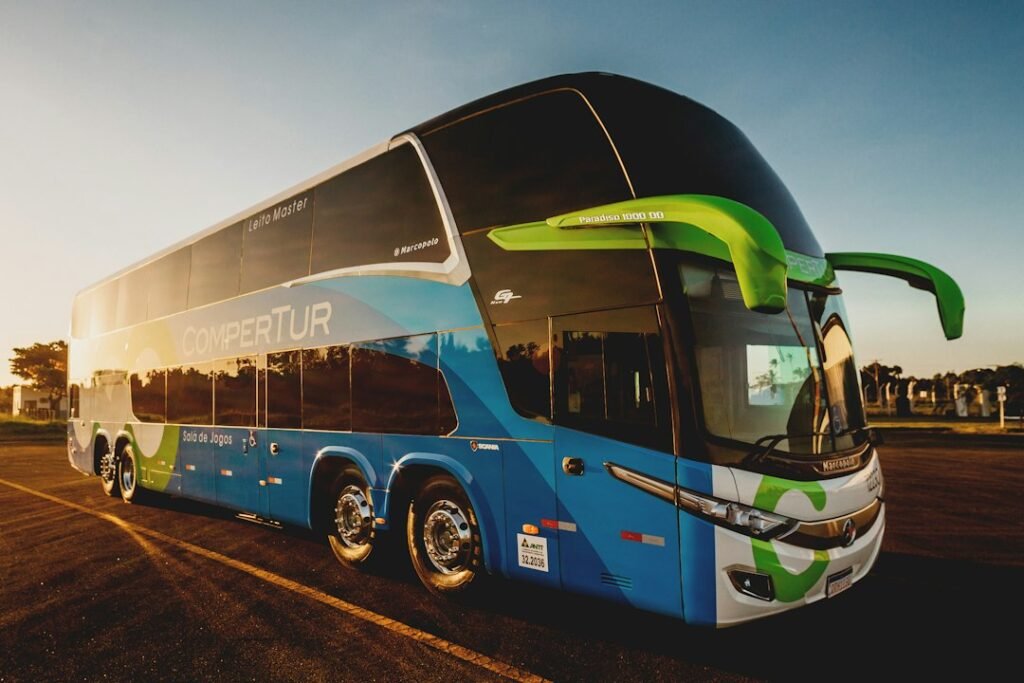
Image credit: Jonathan Borba via Unsplash. The featured photo is an illustrative real-world coach bus, not a screenshot of the game or a custom in-game livery.