
Want to play Bus Simulator: Ultimate on a Windows PC or Mac instead of a phone? One option is to run the Android version through an Android emulator. This guide explains the difference between emulator play and a native PC release, the setup process, controller considerations and common limitations.
Can you play Bus Simulator: Ultimate on PC?
Yes, you can try the Android edition on a computer through a compatible Android emulator. BlueStacks currently provides a dedicated page for playing Bus Simulator: Ultimate on PC and Mac. This is an emulator method: the mobile app runs inside Android software on your computer.
There is also a separate native PC edition listed on Steam by Zuuks Games. At the time this guide was checked, Steam displayed the release status as Coming soon, so do not confuse the announced Steam version with the Android app running in an emulator.
What you need before installing
- A Windows PC or Mac that meets the emulator’s current system requirements.
- Enough free storage for the emulator, Android data and game updates.
- A stable internet connection for setup, sign-in and online game features.
- A Google account if you plan to install the game through Google Play inside the emulator.
- Updated graphics drivers and administrator access where the emulator requires them.
BlueStacks’ published minimums for BlueStacks 5 include Windows 7 or later or macOS 11 or later, at least 4 GB RAM and 10 GB free disk space. These are emulator requirements, not a guarantee that every PC will run the game smoothly. Performance depends on the computer, emulator version, graphics settings and game build.
How to install the Android version on a computer
- Visit the official BlueStacks Bus Simulator: Ultimate page and review its current compatibility information.
- Download the emulator from the official BlueStacks website and install it.
- Open the emulator and complete Google Play sign-in if prompted.
- Search for Bus Simulator: Ultimate in Google Play. Check the developer name and app details before installing.
- Install the game, open it and allow any required game data to finish downloading.
- Start with the default control mapping. Adjust keyboard controls only after confirming which in-game actions each key triggers.
If the game is not available to your Google Play account or emulator configuration, do not use a random repackaged installer as a workaround. Availability can vary by region, device profile and app version.
Can you install an APK in an emulator?
Some emulator versions support installing an APK file from a computer. Only use an APK when you can verify its source, package identity and version. An APK by itself may not include additional game data required by a particular release. Avoid modified packages that request unusual permissions or promise unlimited currency, unlocked accounts or other unsupported advantages.
For a safer starting point, use the game’s Google Play listing when it is available to your account. Our Bus Simulator: Ultimate Android installation guide explains general Android installation checks, while the Android requirements guide covers phone compatibility.
Keyboard, mouse and steering controls
An emulator can map keyboard keys or mouse actions to touchscreen controls, but the best layout is personal. Begin with a simple setup:
- Map steering to keys that allow smooth left and right input.
- Keep acceleration and braking on separate, easy-to-reach keys.
- Leave camera and menu actions on secondary keys so they do not interfere with driving.
- Test the layout in a low-pressure session before attempting a long route.
Not every emulator exposes the same control editor, and an emulator’s key mapping is not an official game control preset. If steering feels abrupt, reduce the sensitivity or choose a different mapping where those options are available.
Emulator version or native Steam version?
| Option | What it means | What to check |
|---|---|---|
| Android emulator | Runs the mobile Android app inside an emulator | Google Play availability, emulator compatibility and PC performance |
| Steam PC edition | A separate native PC release from Zuuks Games | Steam release status, published PC requirements and launch date |
Steam’s listing is the source to check for the native PC edition’s release status and official PC requirements. Do not apply the emulator’s minimum specifications to the native Steam build; they are different products with different technical requirements.
Common problems and practical fixes
The emulator is slow or stutters
Close unnecessary applications, check that virtualization is enabled if your emulator requires it, update graphics drivers and lower emulator performance settings. Do not assume that assigning more CPU cores or memory always improves performance; test changes one at a time.
The game does not appear in Google Play
Check the app’s regional availability and the emulator’s device compatibility. Avoid downloading an APK from an unknown mirror simply because the Play Store search result is missing.
Keyboard controls do not respond correctly
Open the emulator’s control editor, confirm that the control overlay is enabled and remap only the actions you need. Restart the game after changing a profile if the new mapping does not apply.
Can I use my mobile progress on PC?
Do not assume emulator progress will automatically sync with your phone. Use only the game’s supported account or cloud-save options, and confirm that your progress is backed up before changing devices or reinstalling. See our guide on transferring Bus Simulator: Ultimate progress to a new phone.
Frequently asked questions
Is Bus Simulator: Ultimate available on Steam now?
At the time of this article’s review, Steam showed the native PC version as Coming soon. Check the Steam store page for the latest release status.
Is BlueStacks the PC version of the game?
No. BlueStacks is an Android emulator. It runs the Android app on a computer; it is not the same as the separate native PC edition listed by Zuuks Games on Steam.
Can I use a gamepad?
Gamepad support depends on the emulator’s current controller support and the game’s input behaviour. Check the emulator’s controller settings and test the buttons before starting a long trip.
Will the game run smoothly on every laptop?
No. Meeting an emulator’s minimum requirements does not guarantee smooth gameplay. Processor, graphics, memory, cooling, emulator configuration and game updates all affect performance.
Final advice
If you want to try the mobile game on a larger screen today, an Android emulator is the practical route to investigate. If you prefer a native PC release, monitor Zuuks Games’ Steam listing and wait for its official release and system requirements. Keep the two installation methods separate, and use trusted sources for both the emulator and game.
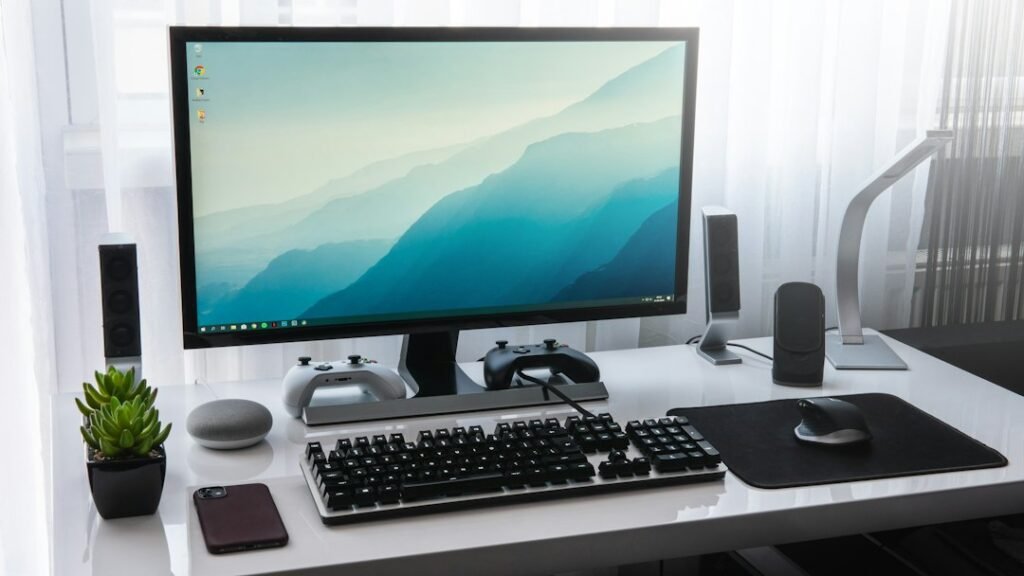
Image credit: Sebastian Bednarek via Unsplash. This is an illustrative desktop gaming photo, not an in-game screenshot.